Dashboard UI/UX Design: Making Complex Data Simple and Actionable
The best dashboard is the one nobody notices. Users open it, immediately understand what's happening, identify what needs attention, and take appropriate action—all without consciously thinking about the interface. The design becomes invisible because it perfectly matches how people think about the underlying information.
Most dashboards fail this test spectacularly. They overwhelm with dozens of metrics presented with equal visual weight. They require mental effort to interpret what should be obvious. They show data without context, leaving users unsure whether what they're seeing is good, bad, or neutral. They look impressive in sales presentations but prove frustrating in daily use.
Effective dashboard design isn't about making things pretty—though aesthetics matter. It's about respecting cognitive load, establishing clear visual hierarchy, and presenting information in formats that enable immediate comprehension and action. Let's explore the principles that separate dashboards people love from those people tolerate.
Understanding Cognitive Load and Information Hierarchy
Human working memory is startlingly limited. People can hold roughly seven pieces of information simultaneously while processing meaning. When dashboards present dozens of metrics with equal emphasis, users can't process them effectively. They resort to scanning familiar spots rather than absorbing comprehensive information.
Start with what matters most. Every dashboard serves specific primary purposes. For a sales dashboard, closed revenue and pipeline value probably matter most. For operations monitoring, current queue length and processing times are critical. For executives, high-level KPIs and trend direction are key. Put this primary information where users look first—typically the top left or center top of the screen—and make it visually prominent.
Establish clear visual hierarchy. Not all information deserves equal visual weight. Primary metrics should be largest and most prominent. Supporting details should be smaller and secondary. Background context can be even less emphasized. When everything is bold or large or colorful, nothing stands out. Restraint in emphasis makes the important elements obvious.
Reduce decorative elements relentlessly. Every element that doesn't convey information competes for attention with elements that do. Decorative gradients, unnecessary borders, excessive whitespace, and non-functional animations all increase cognitive load without adding value. Ruthlessly eliminate decoration and focus visual design on clarity.
Group related information logically. Users should find related metrics together without hunting. Sales metrics cluster together. Operations metrics form another group. Financial data lives in its own section. Use whitespace, subtle borders, or background shading to indicate groupings without cluttering the interface.
Provide progressive disclosure for details. Start with summary information that serves most users most of the time. Allow drilling down into details for users who need deeper analysis. This layered approach serves both quick checks and detailed investigation without overwhelming the default view.
Choosing the Right Visualization for Each Data Type
Data visualization isn't about making dashboards look sophisticated—it's about matching data types to visual representations that enable immediate comprehension. The wrong chart type obscures information even when technically accurate.
Use numbers directly for single important values. If the key metric is current queue length or today's revenue, show the number prominently. Don't force it into a chart unless the chart adds meaningful context. Big, clear numbers work when the value itself is what matters.
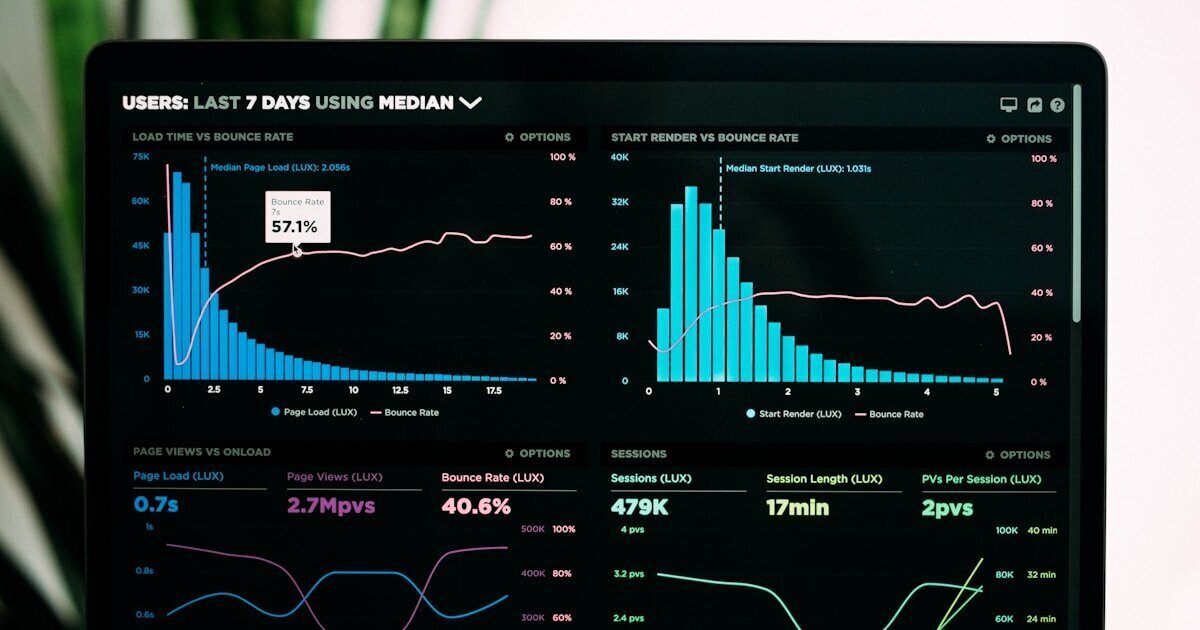
Line charts show trends over time. When you need to convey how something is changing, line charts excel. They make trends, patterns, and anomalies immediately visible. Use line charts for revenue over time, usage trends, or any metric where temporal patterns matter. Multiple lines on one chart enable comparison, but avoid overwhelming with too many lines—three to five maximum for clarity.
Bar charts compare quantities across categories. When comparing values across different products, regions, teams, or other categories, bar charts work well. They make relative sizes immediately apparent. Horizontal bars work better for many categories or long labels. Vertical bars feel more traditional for time-series data with discrete periods.
Pie charts work only for parts of a whole. Pie charts are overused and frequently misapplied. They work when showing how a total divides into parts—market share, budget allocation, traffic sources. They fail for comparisons that aren't parts of a whole or when there are many small slices. If you have more than five slices, use a bar chart instead.
Sparklines provide context in compact space. Tiny line charts embedded next to numbers provide recent trend context without consuming much space. They answer "is this value trending up or down?" at a glance. Sparklines work well in tables or dense layouts where full charts would be overwhelming.
Tables work for detailed data comparison. When users need to compare multiple metrics across multiple items, well-designed tables beat charts. Make tables scannable with clear headers, appropriate column widths, alternating row colors, and right-alignment for numbers. Allow sorting to enable users to find extremes or specific values quickly.
Gauges and meters rarely add value. Circular gauges and progress meters look dashboard-like but typically waste space and force interpretation. "78% of capacity" as a number is clearer and more compact than a half-circle gauge. Use gauges only when the analogy to a physical meter adds understanding—like showing server capacity or resource utilization where the concept of "full" versus "empty" is intuitive.
Color Usage That Informs Rather Than Decorates
Color is powerful for conveying meaning quickly but dangerous when misused. Effective color usage follows clear rules rather than aesthetic preferences.
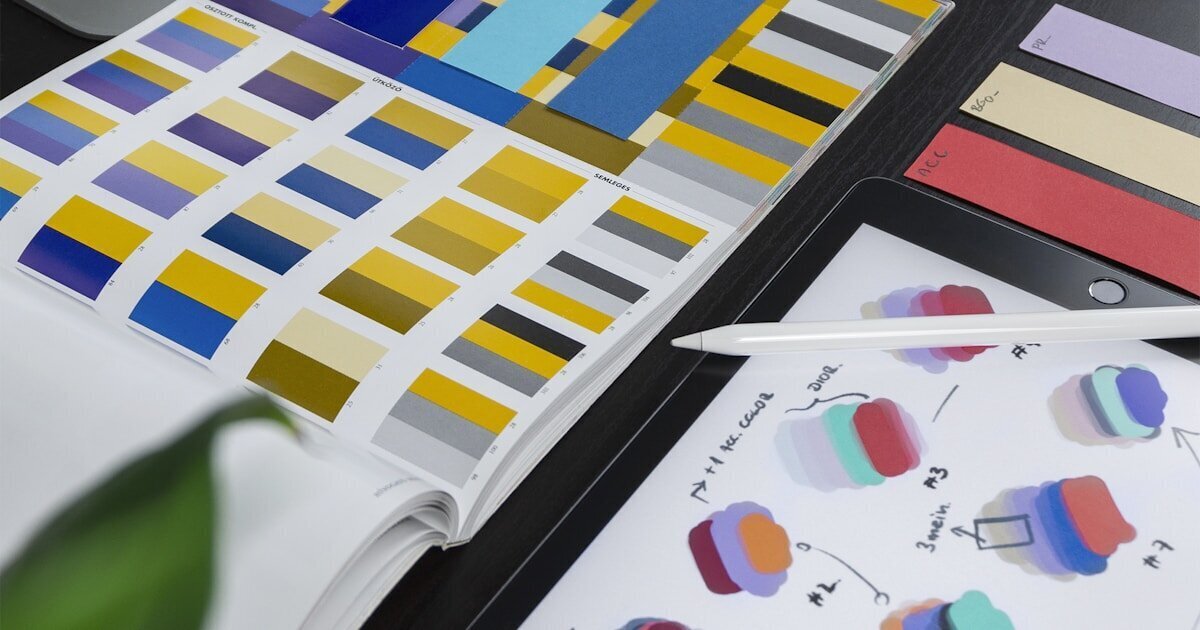
Use color functionally, not decoratively. Every color choice should convey meaning. Red indicates problems or critical values. Yellow suggests caution or items needing attention. Green shows healthy status or positive trends. Gray represents neutral or inactive states. Avoid using color randomly for visual variety—it trains users that color doesn't mean anything.
Maintain consistent color meanings. Once you establish that red means problems, use red consistently for problems throughout the dashboard. Never use red for positive values elsewhere because it "looks nice." Consistency allows users to interpret color meaning instantly without conscious thought.
Design for colorblindness. Roughly 8% of men have some form of color vision deficiency. Never rely on color alone to convey information—combine color with icons, patterns, or text labels. Test designs with colorblindness simulators to ensure critical information remains distinguishable.
Use subtle colors for non-critical information. Not everything deserves bright, saturated colors. Background elements, supporting information, and neutral states work better with muted, low-saturation colors that don't compete for attention. Reserve saturated colors for information that genuinely needs emphasis.
Implement dark mode thoughtfully. Many users prefer dark interfaces, especially for dashboards used for extended periods. But dark mode isn't just inverting colors—it requires rethinking contrast ratios, accent colors, and emphasis. White text on black backgrounds can be harsh; softer backgrounds and slightly muted text create better long-term viewing experiences.
Typography and Readability Fundamentals
Text on dashboards serves one purpose: conveying information clearly and immediately. Every typography choice should serve readability.
Size text for glanceability. Primary metrics deserve large text—big enough to read from across a room if the dashboard displays on wall monitors. Supporting details can be smaller but never so small that users squint or lean forward. Test readability at actual viewing distances and screen sizes.
Choose fonts designed for screens. Not all typefaces work well at small sizes or on screens. System fonts like San Francisco (macOS), Segoe UI (Windows), or Roboto (Android) are optimized for screen readability. For numbers specifically, consider monospace or tabular fonts where digits have consistent width—this prevents numbers from jumping around when values update.
Establish clear visual hierarchy through typography. Vary font size, weight, and color to create hierarchy. Primary headings should be larger and bolder. Metric values should be prominent. Labels and supporting text can be smaller and lighter. This hierarchy guides users' attention to important information first.
Align text appropriately for content type. Left-align text labels and descriptions for readability. Right-align numbers in tables for easy comparison. Center-align text sparingly and only when it serves a clear purpose—typically for headings or empty states.
Handle number formatting thoughtfully. Large numbers need thousands separators (1,234,567 not 1234567). Consider abbreviated formats for very large numbers ($1.2M reads faster than $1,234,567 in quick scanning). Include currency symbols or unit indicators. Show appropriate decimal precision—two places for money, none for counts, whatever makes sense for the metric.
Responsive Design for Multiple Devices and Screen Sizes
Dashboards get viewed on everything from phones to 4K monitors. Design must adapt appropriately to serve all contexts.
Prioritize mobile experience even for desktop-primary tools. Even dashboards used mainly on desktop get checked on phones. Maybe executives review while traveling. Maybe operations staff check from tablets on the floor. Design mobile experiences that surface the most critical information rather than cramming desktop interfaces onto small screens.
Reorganize, don't just shrink. Responsive design isn't about making desktop layouts smaller—it's about reconsidering what information makes sense at each size. Mobile might show only the top three metrics with option to drill down. Tablet might show primary metrics and one level of detail. Desktop can display comprehensive information. Each breakpoint deserves thoughtful layout appropriate to that context.
Test on actual devices, not just simulators. Desktop browser responsive modes approximate mobile but miss important factors—touch targets need to be larger than mouse targets, outdoor visibility differs from indoor, network speed affects perceived performance. Test on representative actual devices to catch real usability issues.
Design for both portrait and landscape orientations. Users hold phones vertically but tablets horizontally. Dashboard layout should adapt appropriately. Portrait layouts might stack information vertically. Landscape can use horizontal layouts that make better use of available width.
Consider dashboard displays and kiosks. Some dashboards appear on wall-mounted displays or kiosks. These contexts require even larger text, higher contrast, and different information density than desktop monitors. Design specifically for viewing distances and ambient lighting in actual installation locations.
Handling Loading States and Empty States Gracefully
Dashboards often display data that takes time to load or situations where no data exists. How you handle these states affects perceived quality and user confidence.
Show loading states clearly. When data is loading, indicate progress rather than showing nothing. Skeleton screens that show the shape of upcoming content work better than generic spinners. They set expectations about what's coming and reduce perceived loading time.
Handle errors informatively. When data can't be loaded, explain what went wrong in plain language and suggest next steps. "Can't connect to database" is technically accurate but not helpful. "We're having trouble loading your sales data. Try refreshing the page, or check back in a few minutes if the issue persists." provides clear guidance.
Design empty states that guide action. When dashboards have no data yet—new accounts, filtered views that return no results, time periods without activity—explain why it's empty and what users should do. "No sales data for last week" might mean the business is failing or might mean it's Sunday and the week hasn't started. Provide context.
Indicate data freshness clearly. Show when data was last updated so users know whether they're seeing current information. For real-time dashboards, show "Live" or "Updated 3 seconds ago." For periodic updates, show "Updated daily at 6 AM" or "Last updated April 15, 3:47 PM."
Accessibility Beyond Compliance
Accessible dashboards aren't just legally required—they're better for everyone. Accessibility improvements often enhance usability for all users.
Provide keyboard navigation. Users who can't or prefer not to use mice need full functionality via keyboard. Implement logical tab order, keyboard shortcuts for common actions, and clear focus indicators showing which element is selected.
Write meaningful alt text for visualizations. Screen readers can't interpret charts. Provide text descriptions of what visualizations show. "Line chart showing revenue increasing from $50K in January to $95K in June, with a notable spike to $120K in April" conveys the key information visually apparent in the chart.
Ensure sufficient contrast ratios. Text and interactive elements need enough contrast against backgrounds to be readable. WCAG guidelines specify minimum contrast ratios (4.5:1 for normal text, 3:1 for large text or non-text elements). Use contrast checkers to verify compliance.
Don't rely solely on color to convey information. Users with color vision deficiencies or using non-color displays need other cues. Combine color with icons, patterns, labels, or position. Critical status might be red and have a warning icon. Positive trends might be green with an upward arrow.
Support screen magnification and zoom. Users with low vision often magnify interfaces. Ensure your dashboard remains functional when zoomed to 200% or more. Use relative sizing rather than fixed pixel dimensions. Allow text to reflow rather than requiring horizontal scrolling when zoomed.
Bringing Good Dashboard Design Together
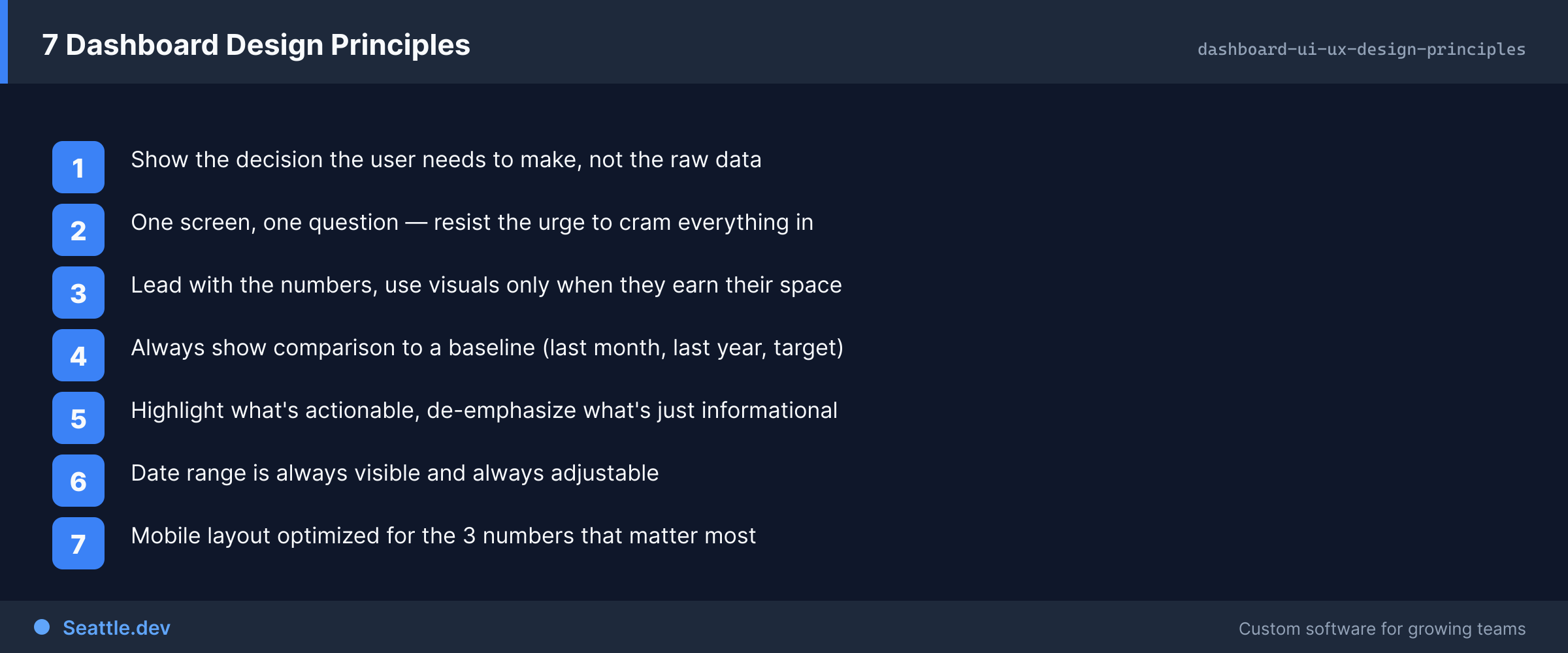
Effective dashboard design emerges from respecting how humans perceive and process information. Start with clear understanding of what decisions users need to make and what information drives those decisions. Design visual hierarchy that makes important information obvious. Choose visualizations that match data types to human perception strengths. Use color, typography, and layout to reduce cognitive load rather than increasing it.
Test extensively with actual users in realistic conditions. What seems clear to designers who built the system often confuses users encountering it fresh. Watch people use the dashboard and identify where they struggle, what they misinterpret, and what they ignore. Iterate based on observed behavior rather than opinions about what should work.
Remember that good design becomes invisible. Users should focus on their work and decisions, not on navigating the interface or interpreting visualizations. When people can accomplish their goals without thinking about the dashboard itself, you've succeeded.
Ready to design dashboards that make complex data clear and actionable? Schedule a consultation to discuss your specific data, user needs, and workflows. We'll help you create dashboard interfaces that users rely on rather than tolerate, making better decisions through better design.